Use this guide to write a support ticket our team can act on right away. It applies to CX1 Showroom, with or without CX1 SPEX Builder, and CX1 Essentials.
Our team needs to see the problem for ourselves. The more exactly we can repeat what you did, the faster we can find the cause and fix it.
NOTE: Copy and paste links. Do not send a screenshot of a web address. We cannot click it, and part of the address is often cut off.
Valid as of November 25, 2026
TABLE OF CONTENTS
- Submit a ticket
- Always include
- Add details for your problem type
- Sample ticket
- Take a screenshot or recording
- Choose a priority
Submit a ticket
Fill out the ticket form from top to bottom. The steps below follow the order of the fields.
- Log in to the support portal. If you need help logging in, see Log in to the support portal.
- Click Submit a ticket at the top of any page.
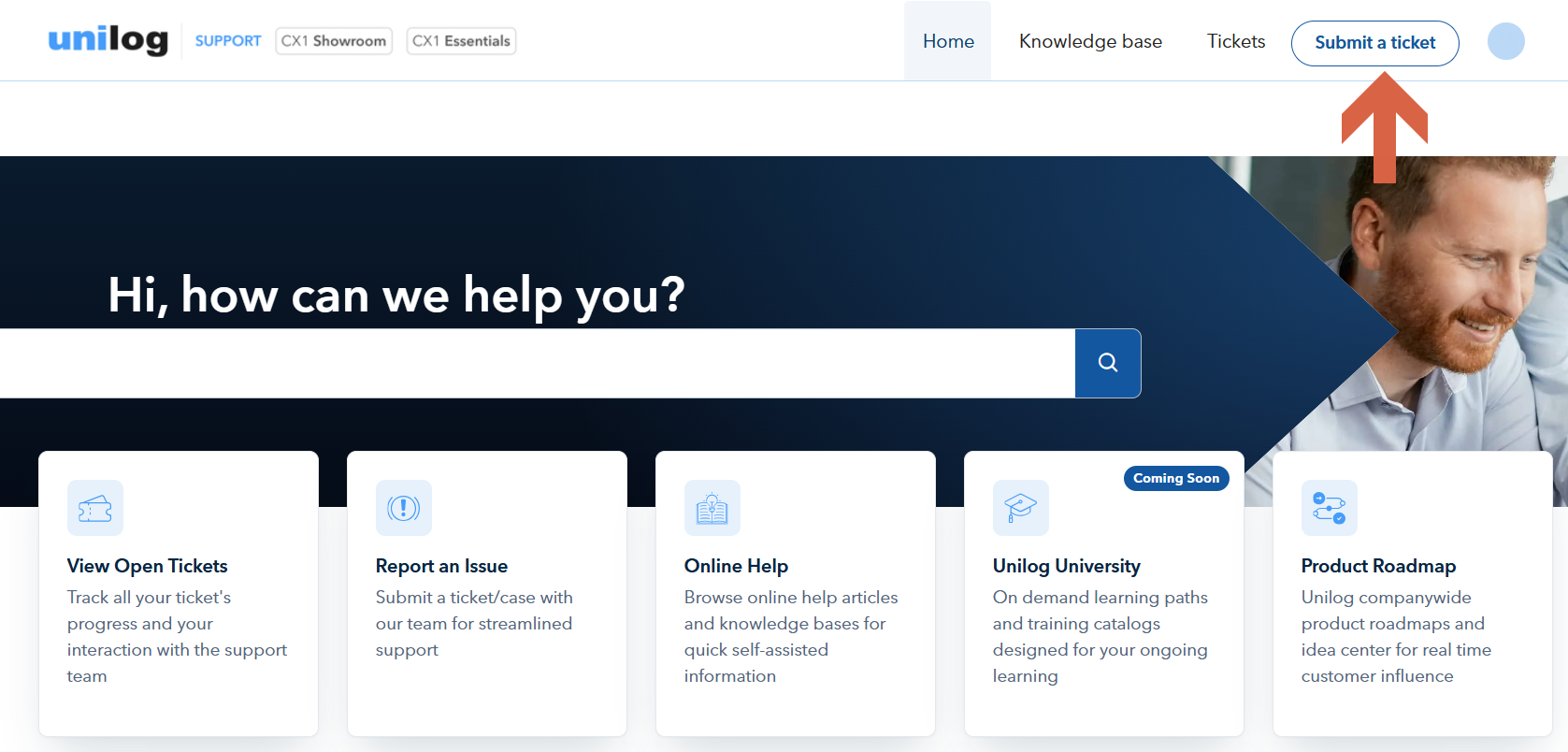
Figure 1. Submit a ticket button.
- The ticket form opens.
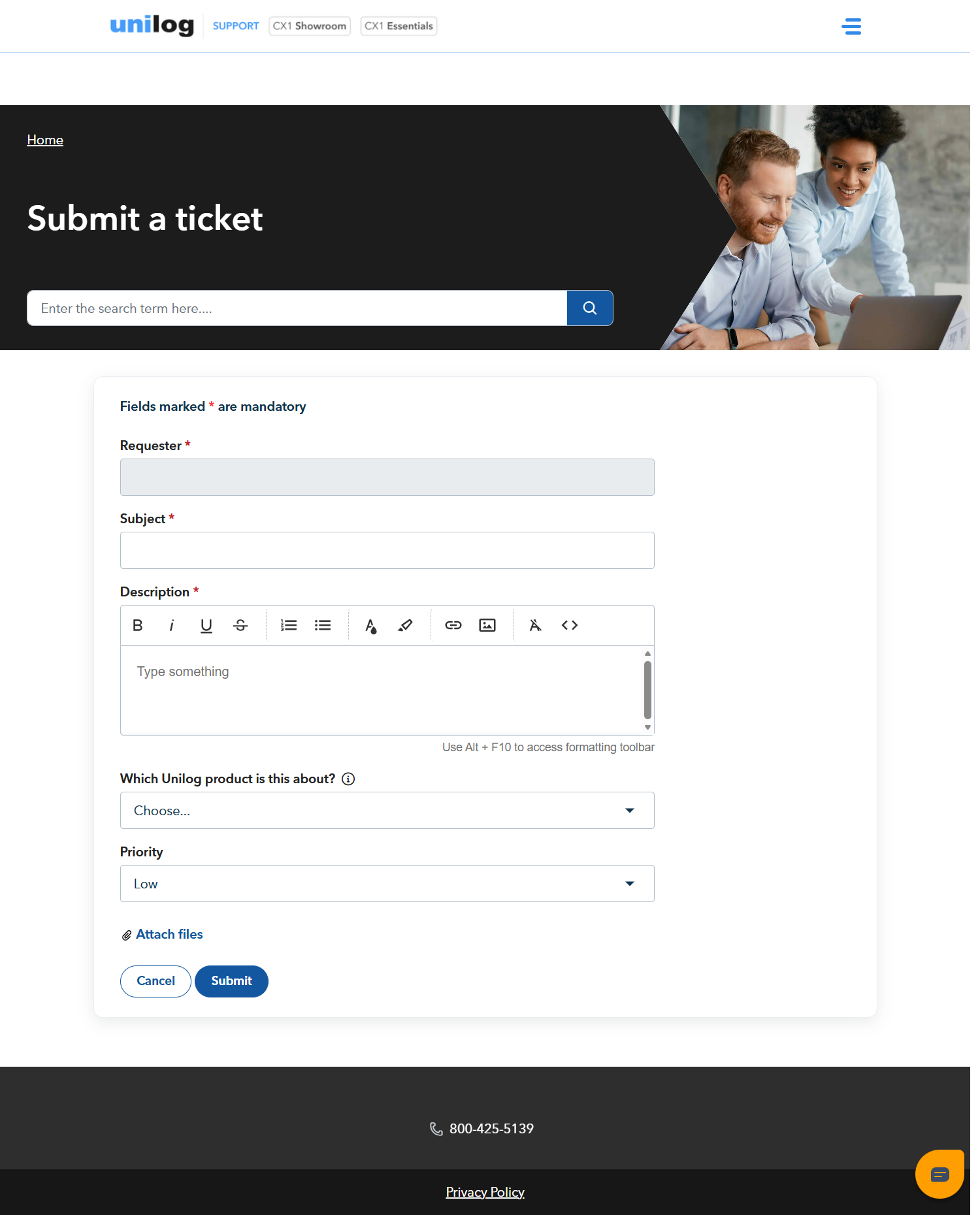
Figure 2. Ticket form.
- Requester: this fills in automatically with the email address you log in with. You can not change it.
- Subject: enter a short summary that says what is wrong and where. An example of a good subject is Incorrect MSRP for Kohler SKU 22378-HB1. A subject like Website problem is not descriptive enough.

Figure 3. A descriptive subject.
- Description: copy the ticket template, paste it here, and fill in every line. Paste screenshots right into the description, next to the step they show. See Always include.
Copy ticket template
If the button does not work, go to Sample ticket, select the text in the box, and copy it.
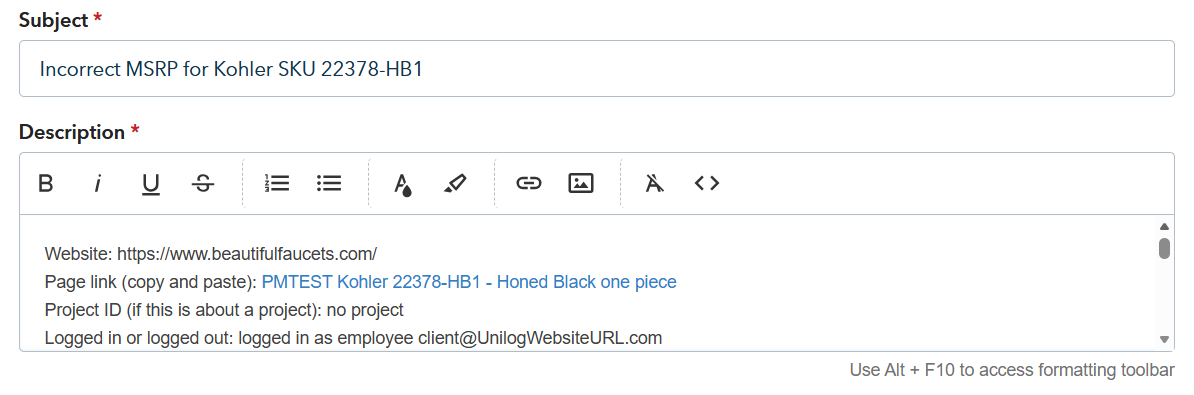
Figure 4. Ticket template pasted into the description.
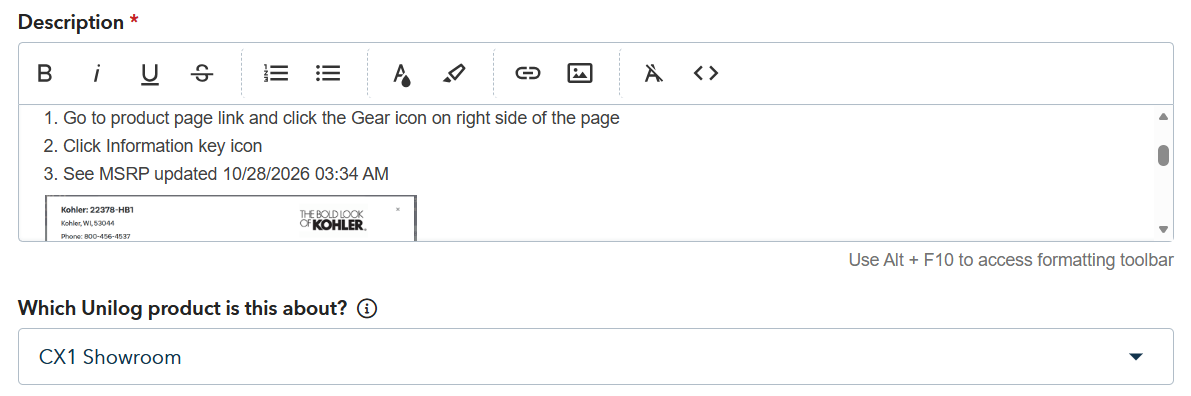
Figure 5. Steps with a screenshot pasted into the description.
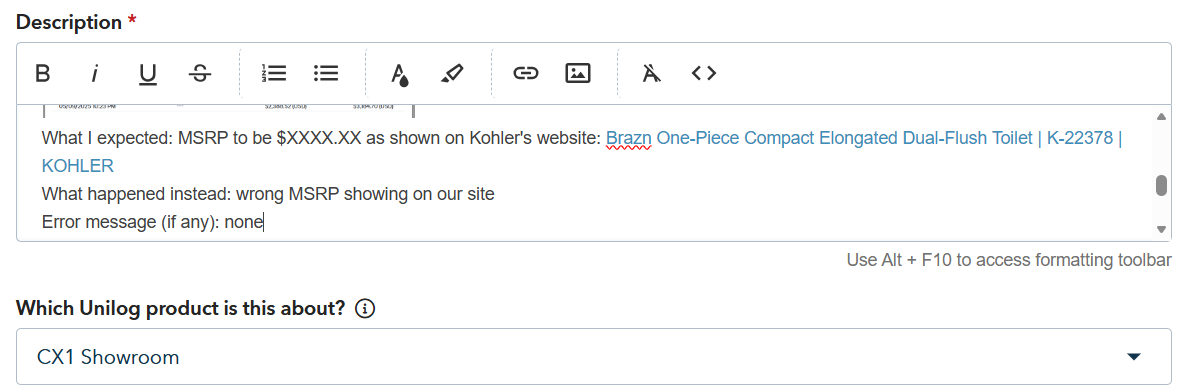
Figure 6. What you expected and what happened instead.
- Which Unilog product is this about?: select the platform your site runs on.
Option Select it for CX1 CIMM2 Sites managed in the CIMM2 admin CX1 Showroom Showroom sites, including CX1 SPEX Builder Login ONLY sites CX1 Essentials Essentials sites, including AD Essentials sites CX1 PIM Product data and content in CX1 PIM 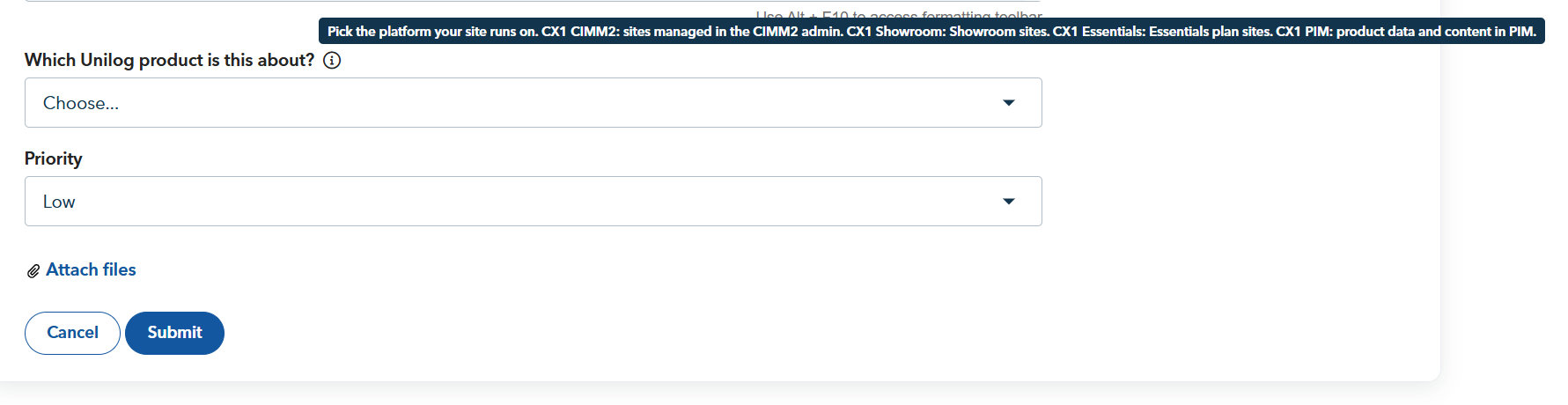
Figure 7. Hover over the info icon to see which product to select.
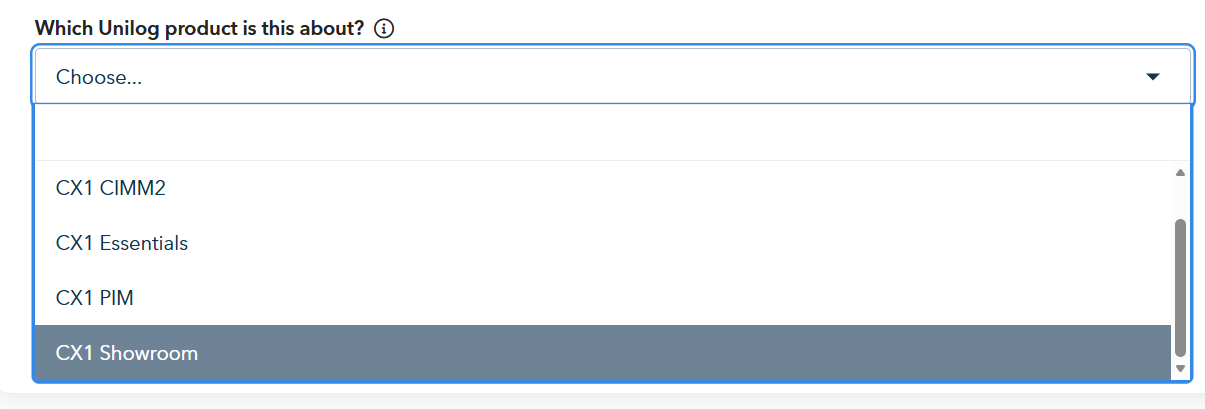
Figure 8. Which Unilog product is this about? options.
- Priority: select how much the problem affects your work. See Choose a priority.
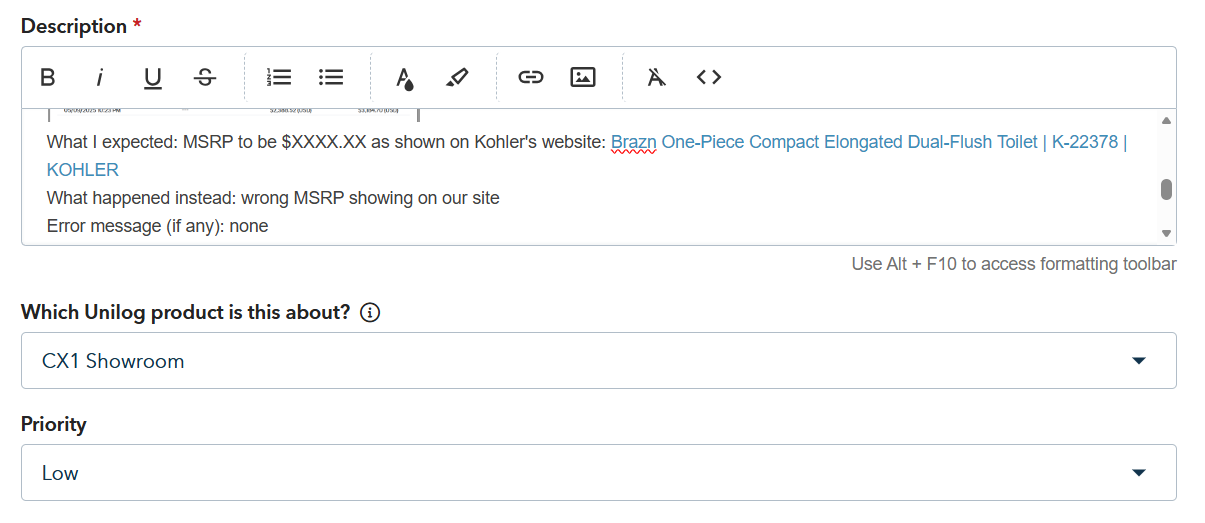
Figure 9. Priority field.
- Attach files: attach anything that helps us see the problem, such as a generated PDF, a price list, or a screen recording.
- Click Submit.
NOTE: Select your product in Which Unilog product is this about? on every ticket. This sends your ticket to the support team for your product.
You can also email support@cx1showroom.unilogcorp.com. Your email becomes a ticket.
Always include
- Your website address if your email address does not match You@UnilogWebsiteURL.
- Your Project ID, if this involves a project.
- The link to the exact page where the problem happens, copied and pasted (excluding project/wishlist) pages.
- Whether you were logged in as an employee or logged out.
- Every step you took, in order, with enough detail that our team can do exactly what you did and see the same result.
- What you expected to happen, and what happened instead.
- Any error message, copied as text or in a screenshot.
- When it started, and whether it happens every time.
- Who is affected: one employee, all employees, or your customers. If it is one employee, include their employee login email.
- A screenshot or screen recording of the problem. See Take a screenshot or recording.
Why steps matter: many problems only happen in a certain order, with a certain product, or for a certain user. If we cannot repeat the problem, we cannot confirm the cause or test the fix. Missing steps mean we have to write back and ask, which adds time to resolving your issue.
Submit one ticket per issue/brand so we can route each one to the right team.
When you submit a ticket via the portal, select your product in Which Unilog product is this about? See Submit a ticket.
Add details for your problem type
Add these details to the items in Always include.
Website problem
A page will not load, looks wrong, or a link or button does not work.
- Your browser (Chrome, Edge, Safari, Firefox) and device (computer, phone, tablet).
- Whether the problem also happens in a private or incognito window.
Pricing problem
- The product detail page link to the product on your website.
- The price you see (add screenshot), and the price you expected to see.
- Where the expected price comes from: a vendor website (send the link to where you see the price), a price list file (send us the file), or a pricing change you requested (tell us who you spoke to, when you requested it, and/or send the ticket number).
Missing or incorrect product
- The product link, if the product is on your site.
- The brand and SKU written out in text we can copy/paste if missing from your site.
- The link to the product detail page on the vendor's site.
- What is missing or wrong on existing product: the product, a finish, an image, a spec sheet, or product details.
- Where the correct information is, such as the vendor website or a file you attach.
Project or SPEX Builder problem
- The Project ID.
- The document layout you used, such as Presentation, Professional, or the others available.
- The settings you selected.
- Which product or page of the document is wrong.
- The generated PDF, attached to the ticket.
- Screenshots showing what is wrong and where it is wrong.
NOTE: Job Sheets are not saved to the Print Log. Save the Job Sheet when you create it and attach it to your ticket.
Vendor or brand update
- The brand name.
- What changed: pricing, products, images, or brand settings.
- The vendor price list or file, attached to the ticket.
- The date the change takes effect.
- For CX1 Showroom clients, your completed Brand Setup Form, if you are changing brand settings such as multipliers or visibility. See How to update the Brand Setup Form to Add or Change Brands : CX1 Showroom
Employee login or user access
- The employee's name and login email.
- What they tried to do, and the error or result they got.
To add, update, or remove employees, use your site specific Employee User Setup Form. See Managing Employee Users with the Employee User Setup Form.
Sample ticket
Copy this into your ticket description and fill it in.
Copy ticket template
Website:
Page link (copy and paste):
Project ID (if this is about a project):
Logged in or logged out:

Steps to recreate the problem:
1.
2.
3.

What I expected:
What happened instead:
Error message (if any):

When it started:
Happens every time?
Who is affected:


Copy and Paste screenshots in the text. Attach screen recordings and send detailed descriptions of what is happening in the recording. Timestamp notes are helpful.
Take a screenshot or recording
Show the whole browser window, including the address bar, so we can see where you are.
| Device | How to take a screenshot |
|---|---|
| Windows | Press Windows key + Shift + S, then drag to select the area. |
| Mac | Press Command + Shift + 4, then drag to select the area. Press Command + Shift + 5 to record your screen. |
| Phone or tablet | Use your device's screenshot buttons. |
TIP: A short screen recording often shows the steps better than several screenshots.
Choose a priority
Priority tells our team how severe your issue is. If a ticket is marked higher than needed, we adjust it when we receive it. Report all problems as soon as possible.
| Priority | What it means | Examples |
|---|---|---|
| Low | An annoyance that does not stop your work. Use Heart+ Overrides or Custom Products as a workaround. | Incorrect product text, missing documents, minor display issues. |
| Medium | Requires a workaround that adds time and effort. | Bulk selection not working, delays saving changes. |
| High | Stops your work completely. | Unable to save products, website down. |
NOTE: If your website is down, wait a few minutes first. The issue may be temporary. Our team is alerted to site outages automatically, even outside business hours.
NOTE: For a complete work stoppage, submit a ticket with High priority and as much detail as possible, so we can start working on it right away.
Still need help?
Submit a ticket through the support portal or call 800-425-5139.
Was this article helpful?
That’s Great!
Thank you for your feedback
Sorry! We couldn't be helpful
Thank you for your feedback
Feedback sent
We appreciate your effort and will try to fix the article