Use this guide to log in to the support portal, where you submit tickets and read help articles. It applies to CX1 Showroom, with or without CX1 SPEX Builder, and CX1 Essentials.
Use your work email address. This is the email you use at your job. It ends with your company's website name, such as jane@yourcompany.com. Do not use a personal email address such as Gmail or Yahoo.
NOTE: Your support portal login is separate from your website Employee login. They have different passwords. Changing one does not change the other.
Valid as of November 25, 2026
TABLE OF CONTENTS
- Use your work email address
- Choose your path
- Path A: Create your account
- Path B: Set your password
- Log in to the support portal
- Submit a ticket
- Find help articles
- Troubleshooting
Use your work email address
Your work email address has your company's website name after the @ sign.
| Use this | Not this |
|---|---|
| jane@yourcompany.com | jane.smith@gmail.com janesmith@yahoo.com jane@hotmail.com |
Your work email tells our team which company and website you are with, so we can help you faster.
Have you emailed support before from a personal email address? Still set up your account with your work email address. Then let us know about the other address so we can merge your accounts. See I emailed support from a personal email address.
Choose your path
Your support portal account is created automatically the first time you email support. That is why Sign up does not work for anyone who has emailed us before.
| Have you ever emailed support@cx1showroom.unilogcorp.com from your work email address? | Follow this path |
|---|---|
| No | Path A: Create your account |
| Yes | Path B: Set your password |
| Not sure | Path A: Create your account. If you see Email has already been taken, your account exists. Go to Path B. |
You may also receive a welcome email like this one.
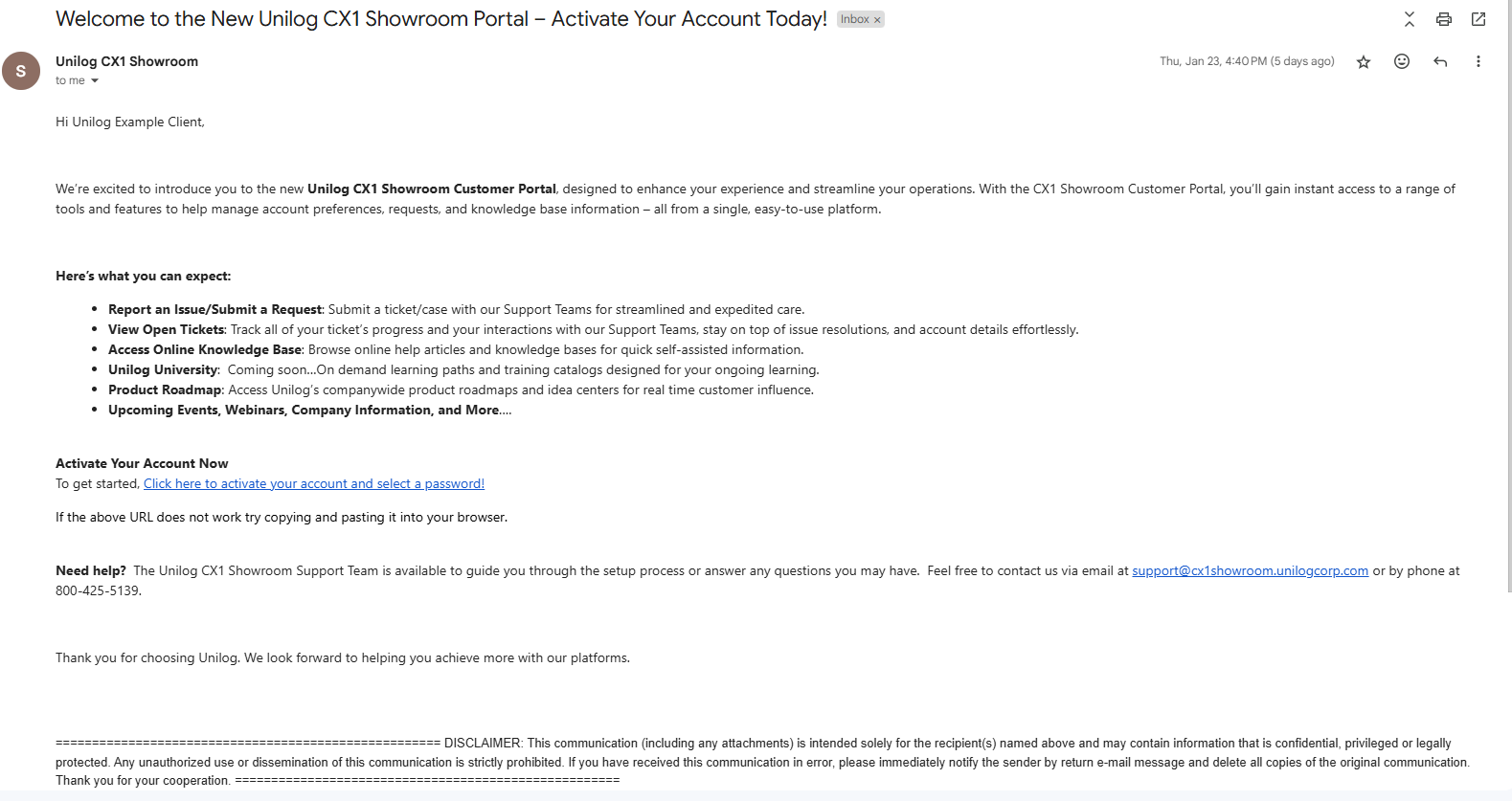
Figure 1. Support portal welcome email.
Path A: Create your account
- Go to https://support.cx1showroom.unilogcorp.com/support/login.
- Click Sign up.
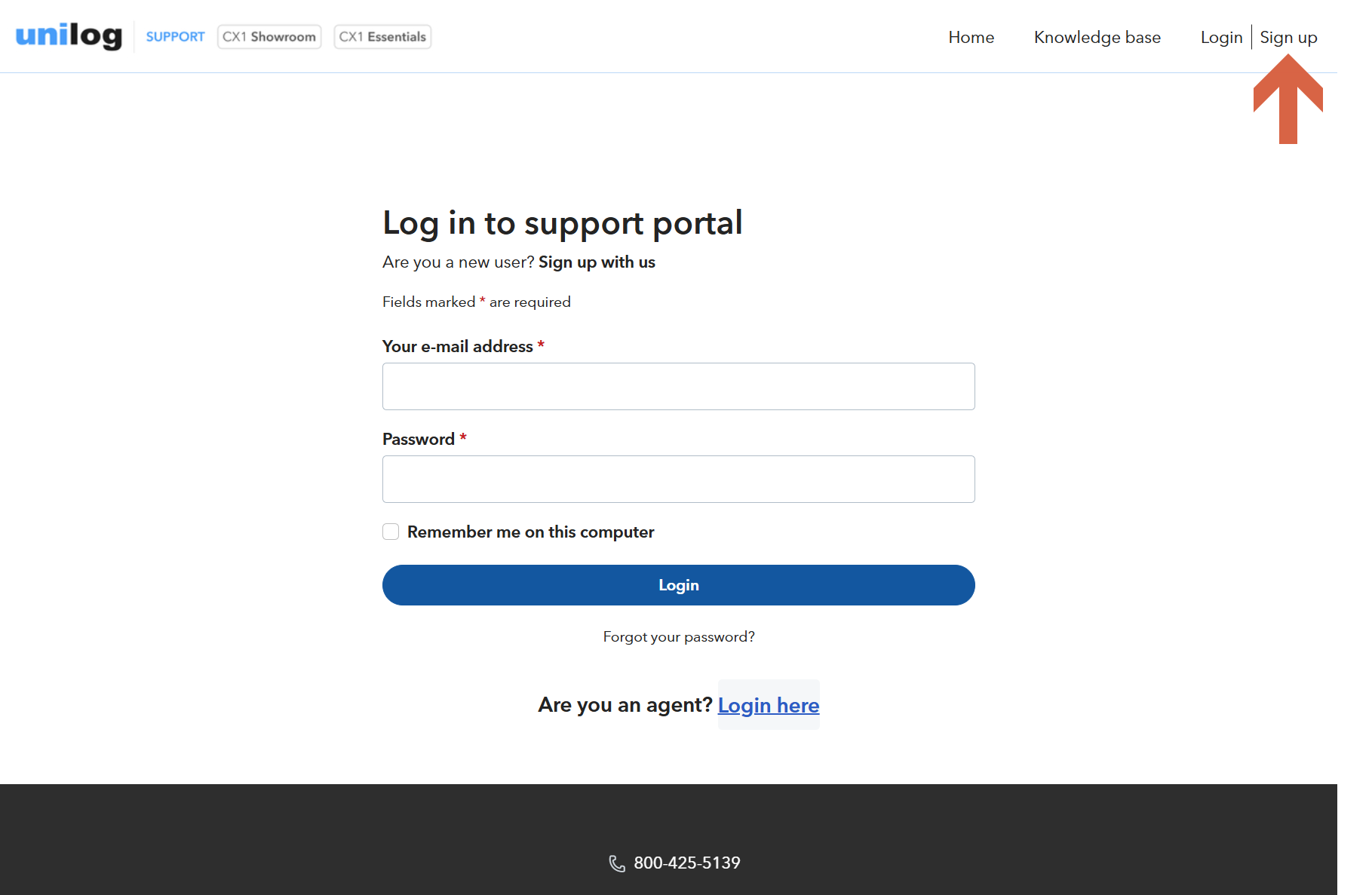
Figure 2. Sign up link.
- Enter your name and your work email address, prove you are not a robot, then click Register.
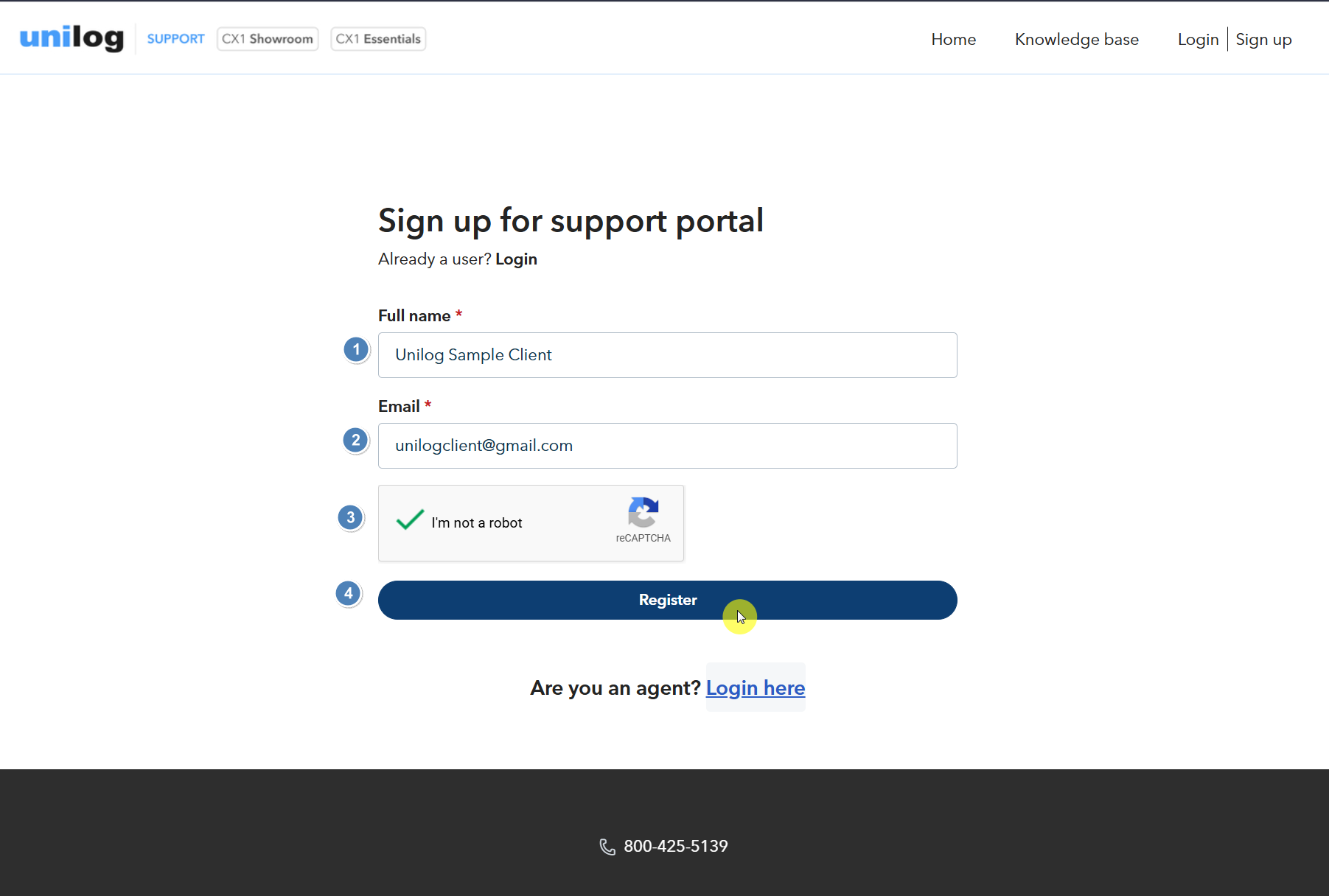
Figure 3. Registration form.
If you see Email has already been taken, go to Path B: Set your password.
Path B: Set your password
Use these steps if you have emailed support before, saw Email has already been taken, or forgot your password.
- Go to https://support.cx1showroom.unilogcorp.com/support/login, or click Login.
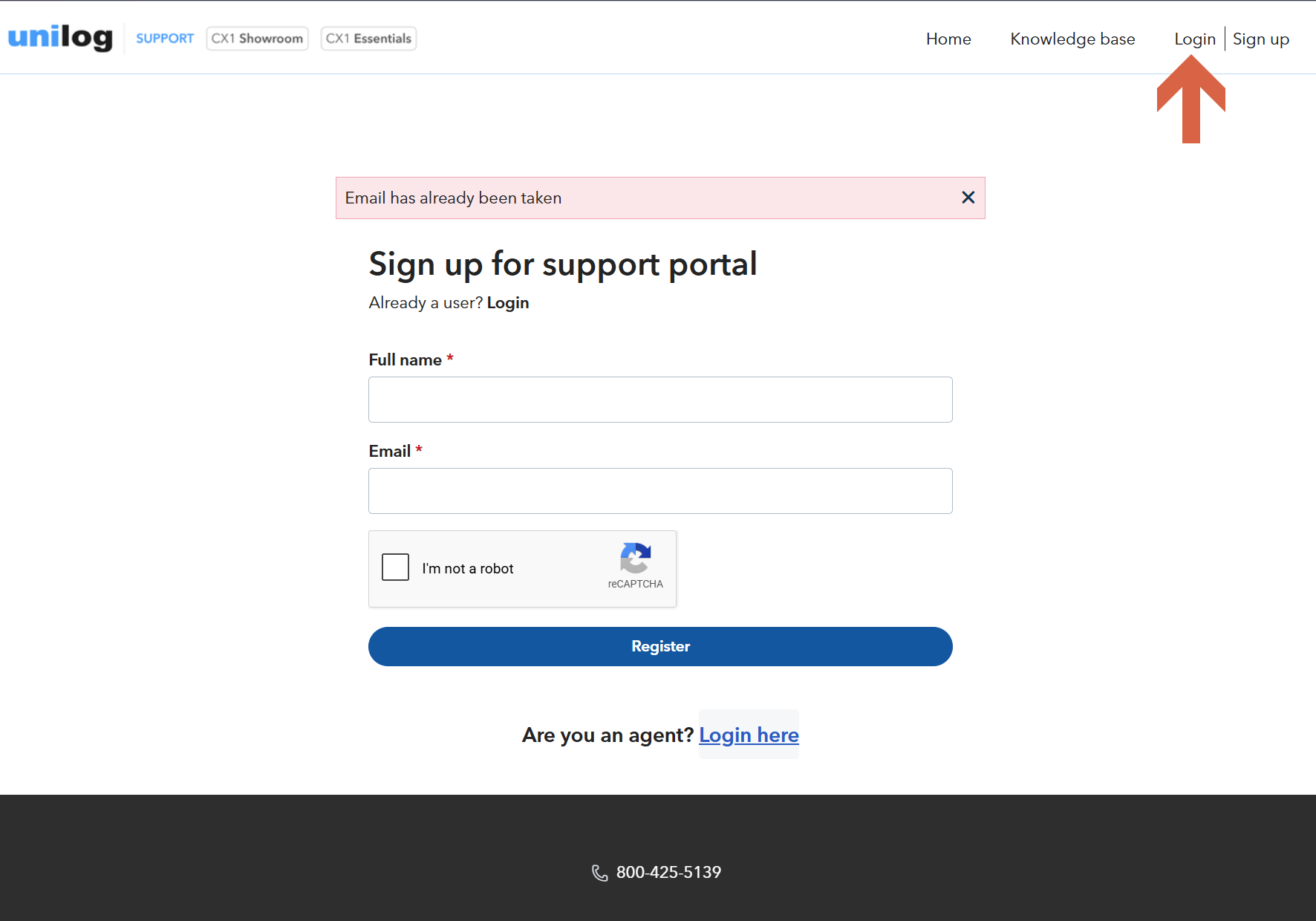
Figure 4. Login link.
- Click Forgot Password.
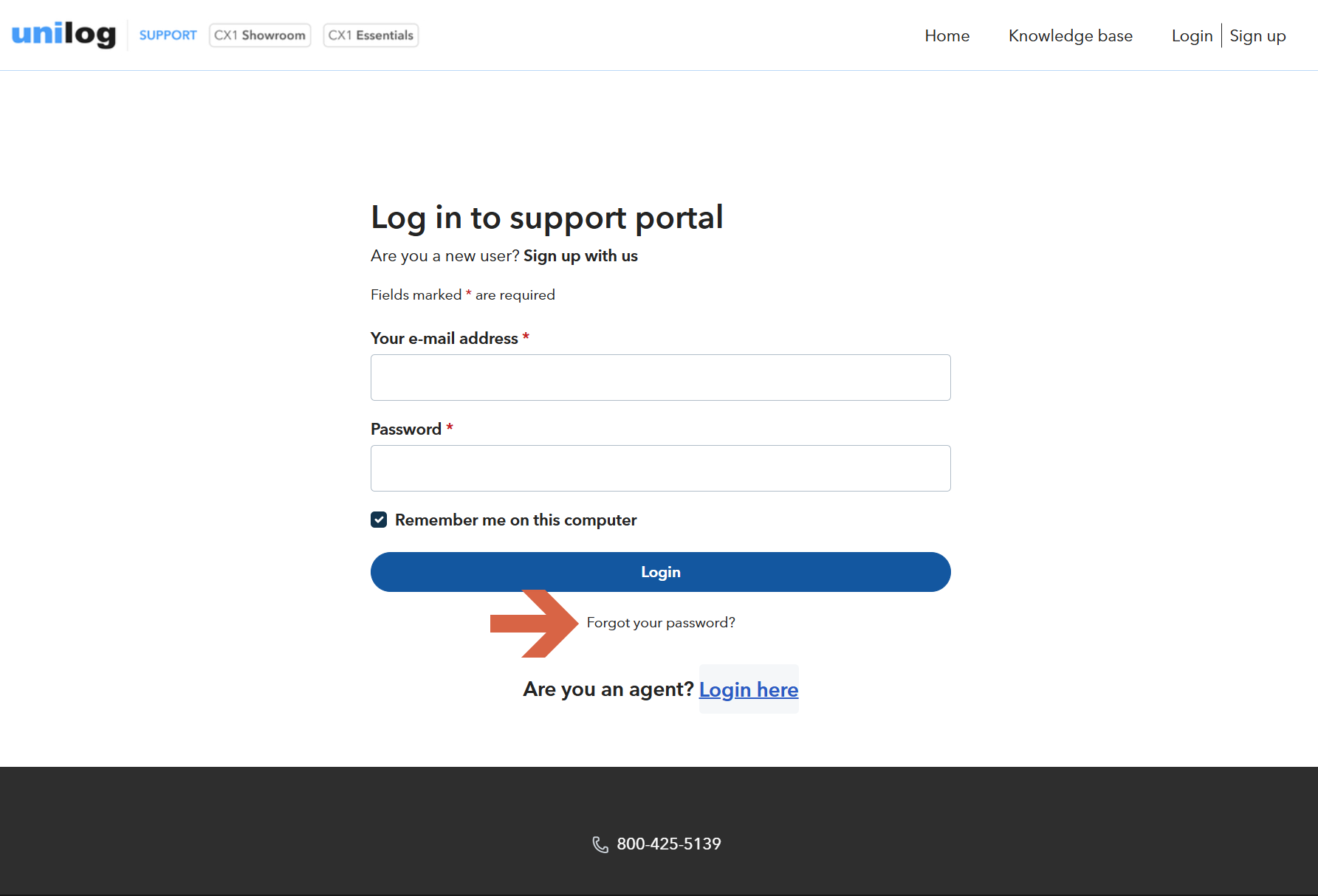
Figure 5. Forgot Password link.
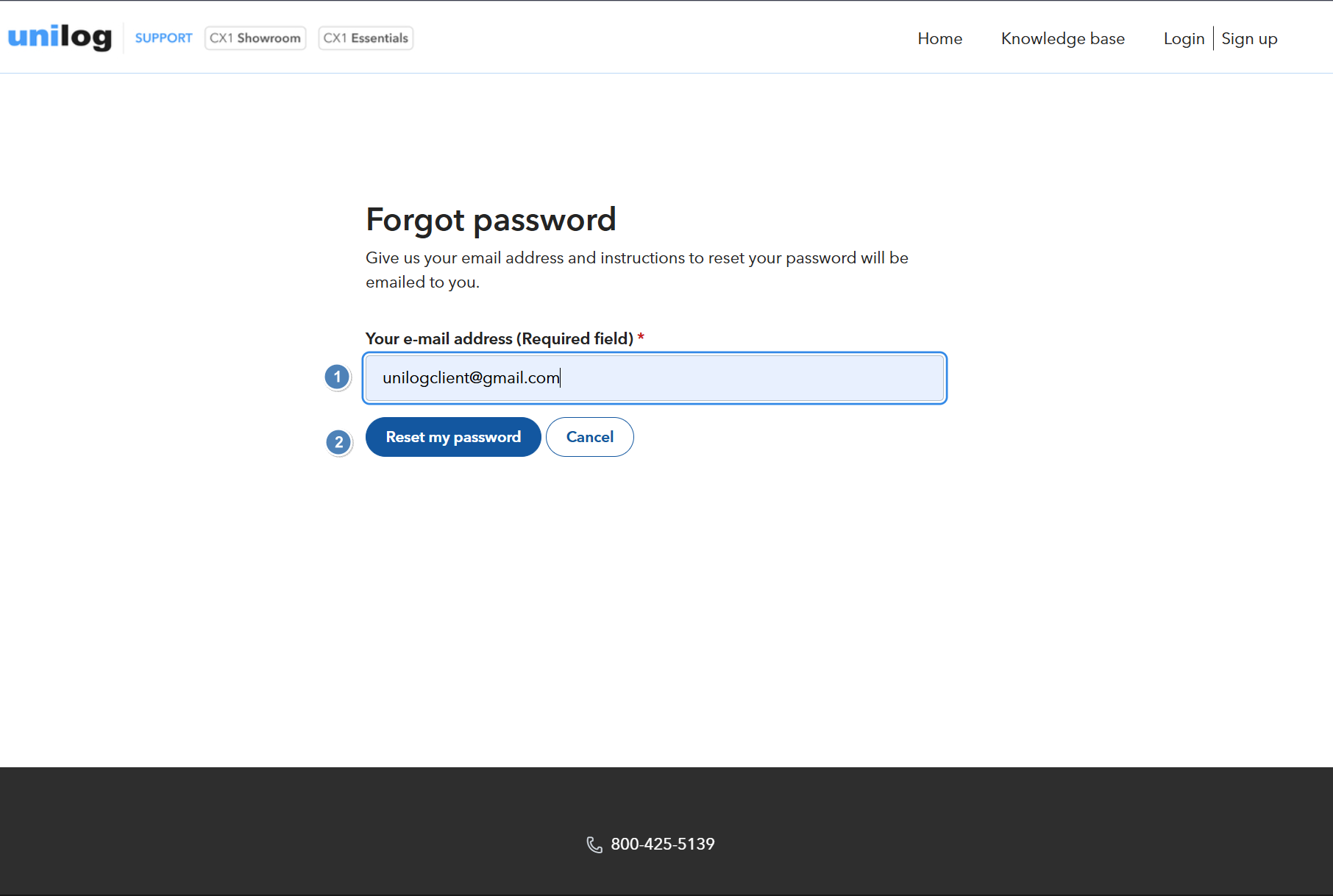 Figure 6. Reset Password.
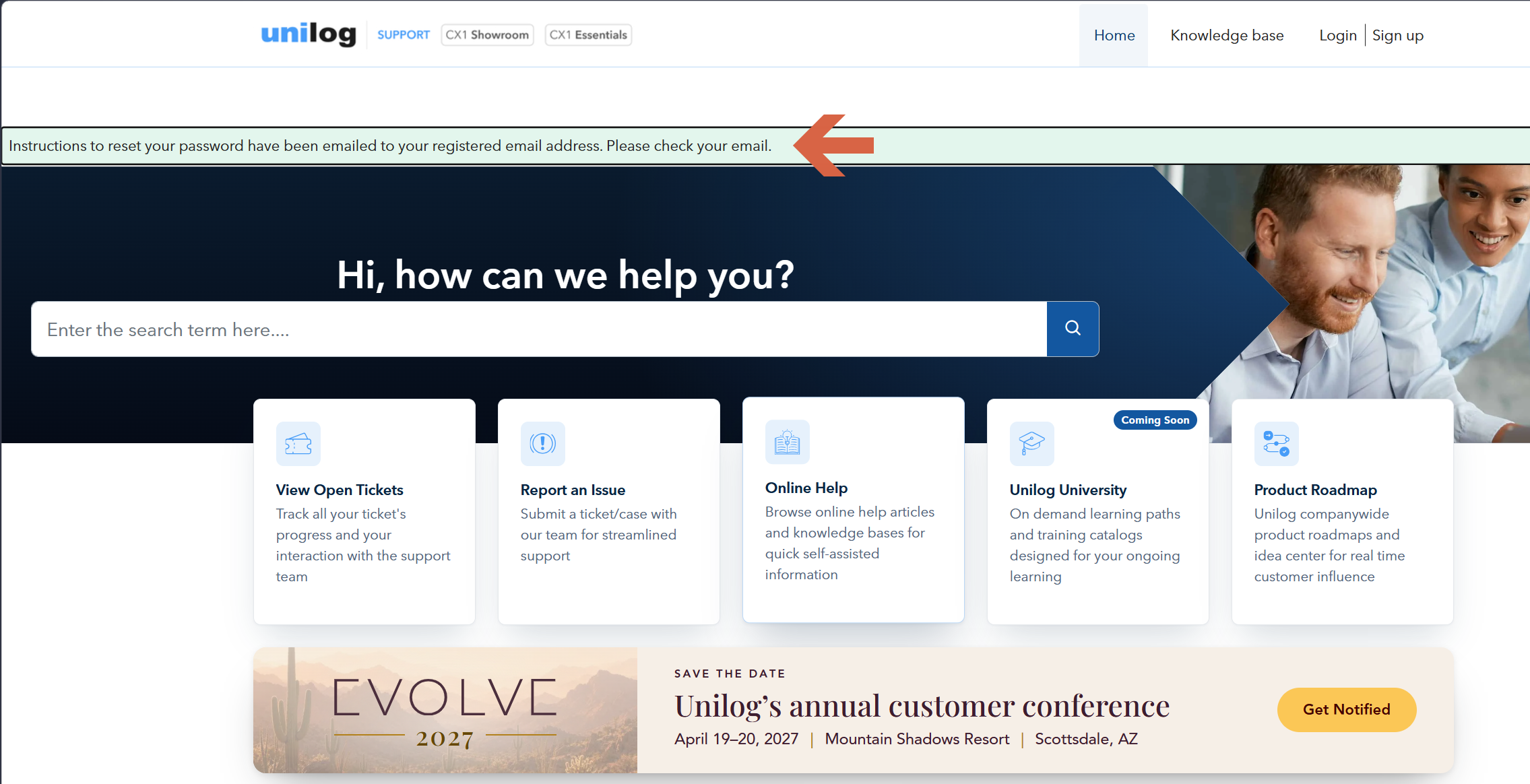 Figure 7. Please check your email.
- Enter your work email address. Click Reset my password.
- Please wait a few minutes, check your email for the reset email, and follow the link to set your password.
Log in to the support portal
- Go to https://support.cx1showroom.unilogcorp.com/support/home and click Login
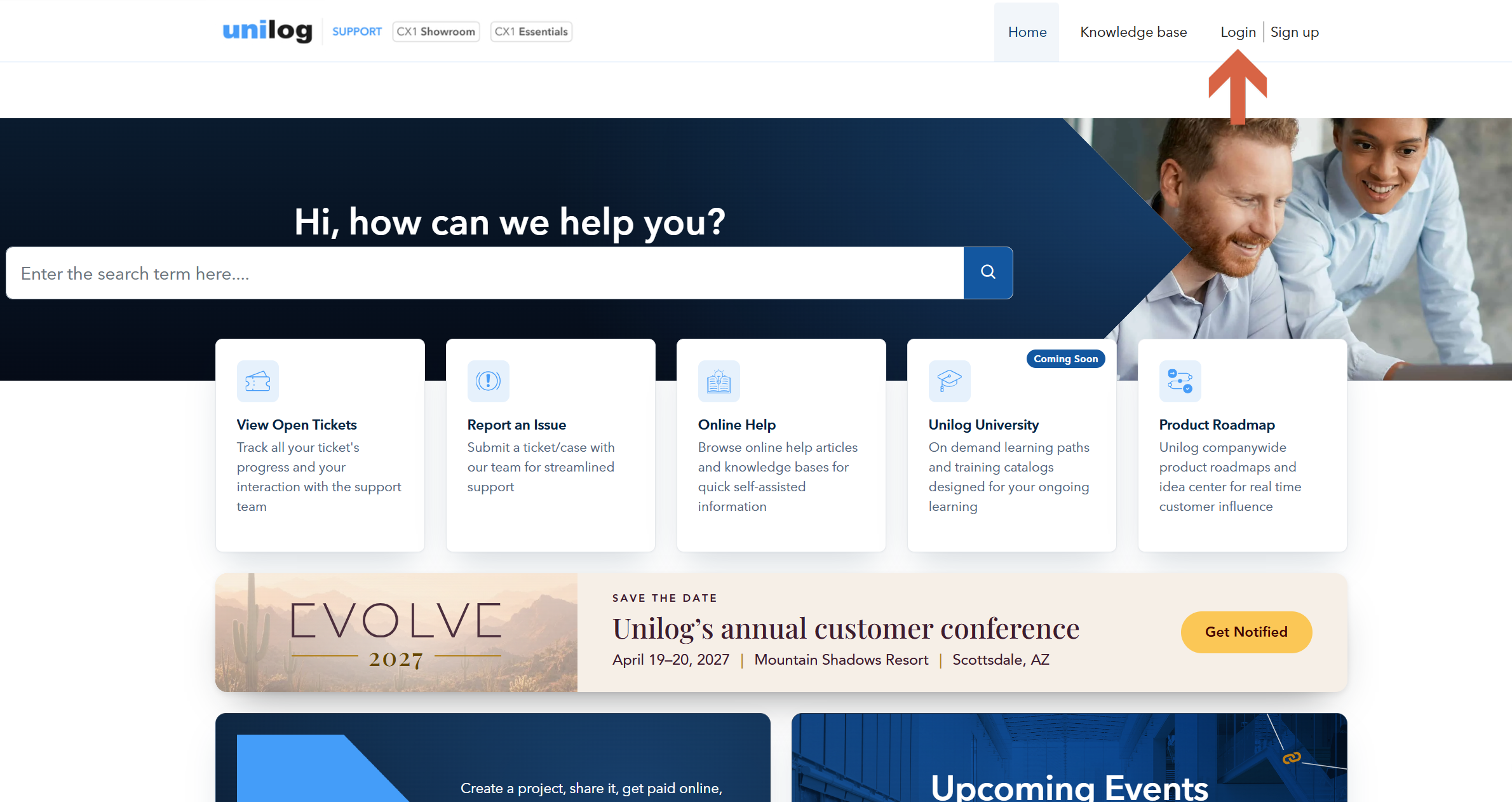
Figure 8. Support portal page.
- Enter your work email address and password, then click Login.
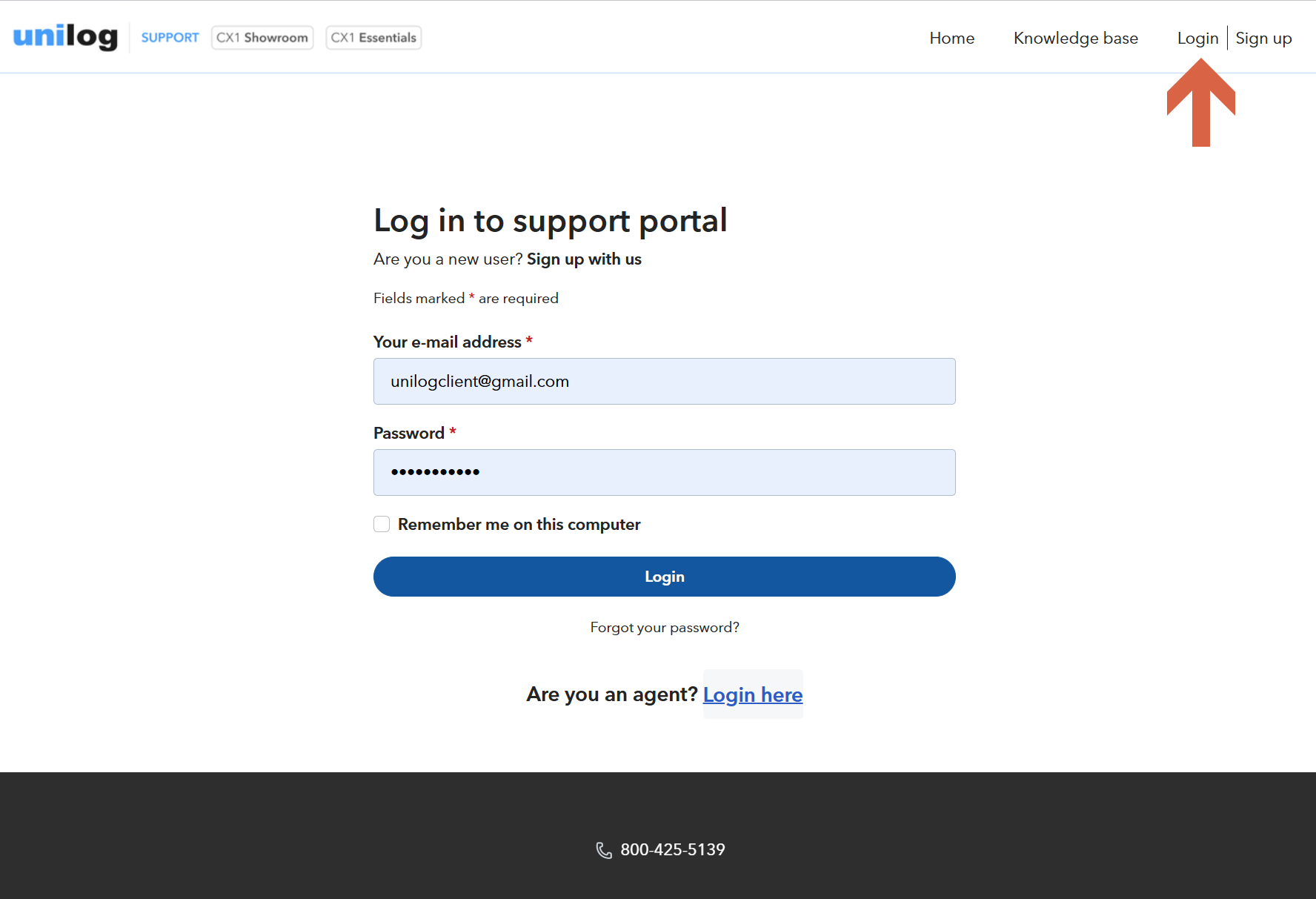
Figure 9. Login form.
After you log in, you see the support portal home page.
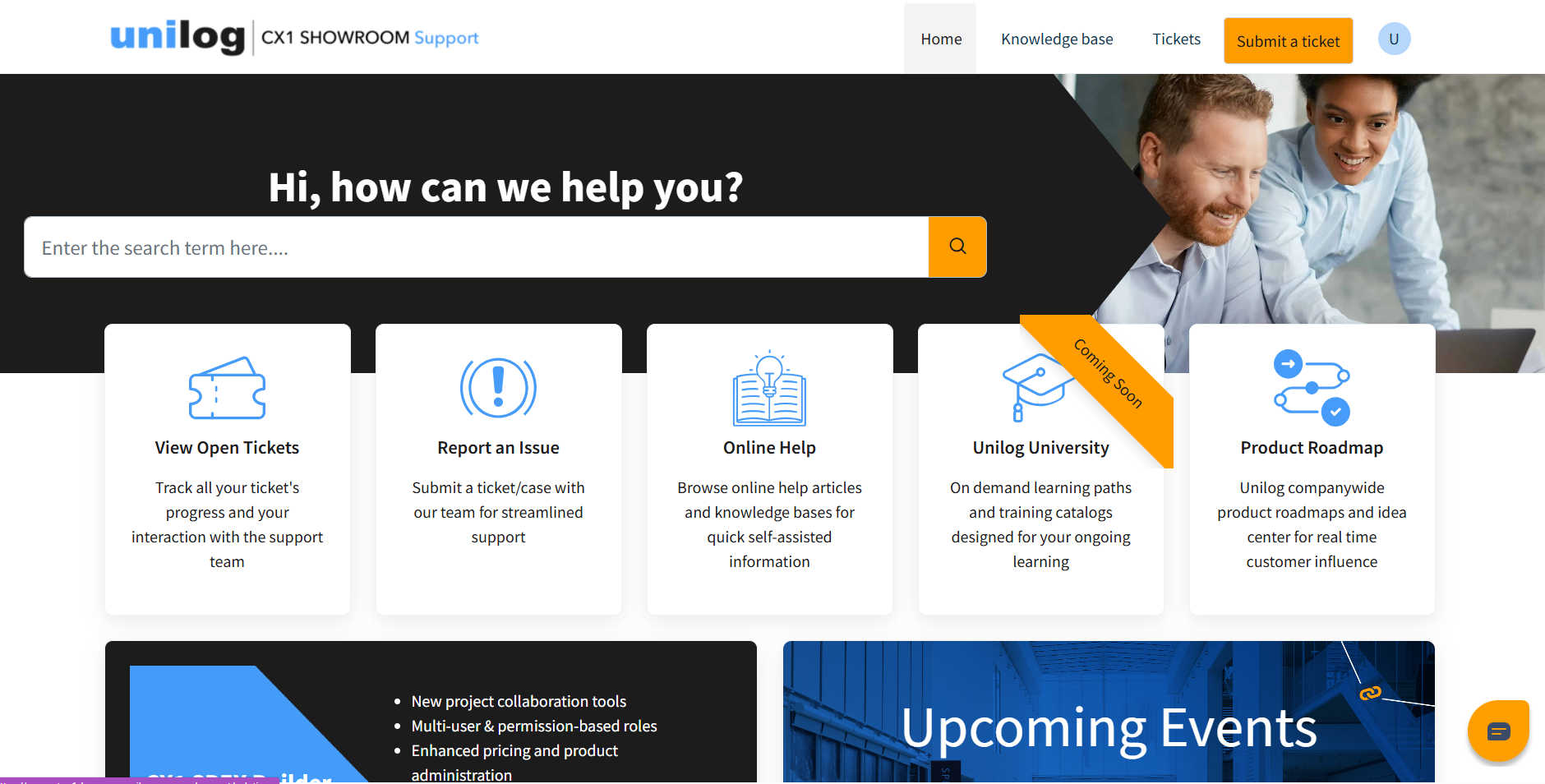
Figure 10. Support portal home page.
TIP: Bookmark https://support.cx1showroom.unilogcorp.com/support/solutions so you can reach support even when your website is down.
Submit a ticket
After you log in, click Submit a ticket. For each field, what to include, and how to choose a priority, see Submit a Ticket: What to include when you report a problem : CX1 Showroom
Find help articles
Many common questions are answered in the knowledge base. Click Knowledge base at the top of any page, or search for a topic. Our team may also send you article links to help resolve basic issues.
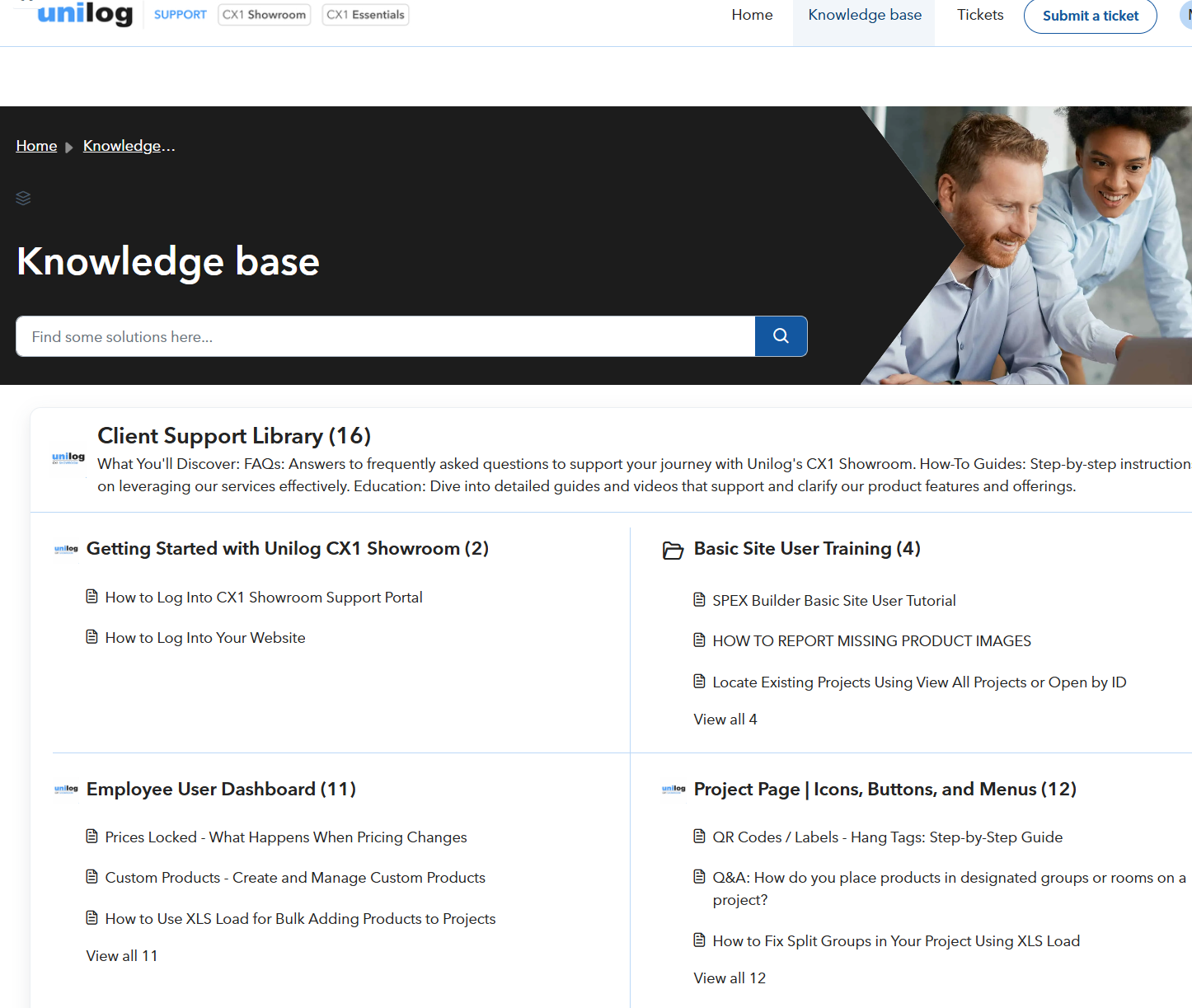
Figure 11. Knowledge base.
Troubleshooting
“Email has already been taken”
You already have an account, usually because you emailed support before. Go to Path B: Set your password.
I emailed support from a personal email address
- Set up your account with your work email address. Follow Choose your path.
- Log in and submit a ticket asking us to merge your accounts. Copy this into the ticket:
Please merge my support portal accounts.
Work email:
Other email I used before:
We combine your accounts so all your tickets stay in one place.
I did not get the email
- Check your spam and junk folders.
- Wait 15 minutes, then check again.
- Ask your IT team to allow email from the support portal. Copy this message and send it to them:
Hi, please whitelist (allow) email from support@cx1showroom.unilogcorp.com and the domain unilogcorp.com. This is our website provider's support portal. I am not receiving their account and password emails.
After your IT team confirms, repeat Path B: Set your password.
I forgot my password
Follow Path B: Set your password.
Still need help?
Submit a ticket through the support portal or call 800-425-5139.
Was this article helpful?
That’s Great!
Thank you for your feedback
Sorry! We couldn't be helpful
Thank you for your feedback
Feedback sent
We appreciate your effort and will try to fix the article